Sophos XG 85 Rev 3 is an entry-level compact x64 router / firewall. It runs on an Intel Atom E3930 processor (dual-core, 1.30 GHz base, 1.80 GHz burst) with 2 GB of memory and an 8 GB of eMMC storage. Both memory and storage are soldered onto the system board, so neither is upgradable. The networking is four independently configurable ports with Realtek RTL8xxx controllers. The XG 85w Rev 3 model adds single-band wireless AC networking (Qualcomm Atheros QCA98xx).
Sophos XG 86(w) is externally identical to XG 85(w) Rev 3. Internally, it differs only in the amount of memory (4 GB) and eMMC storage capacity (16 GB).
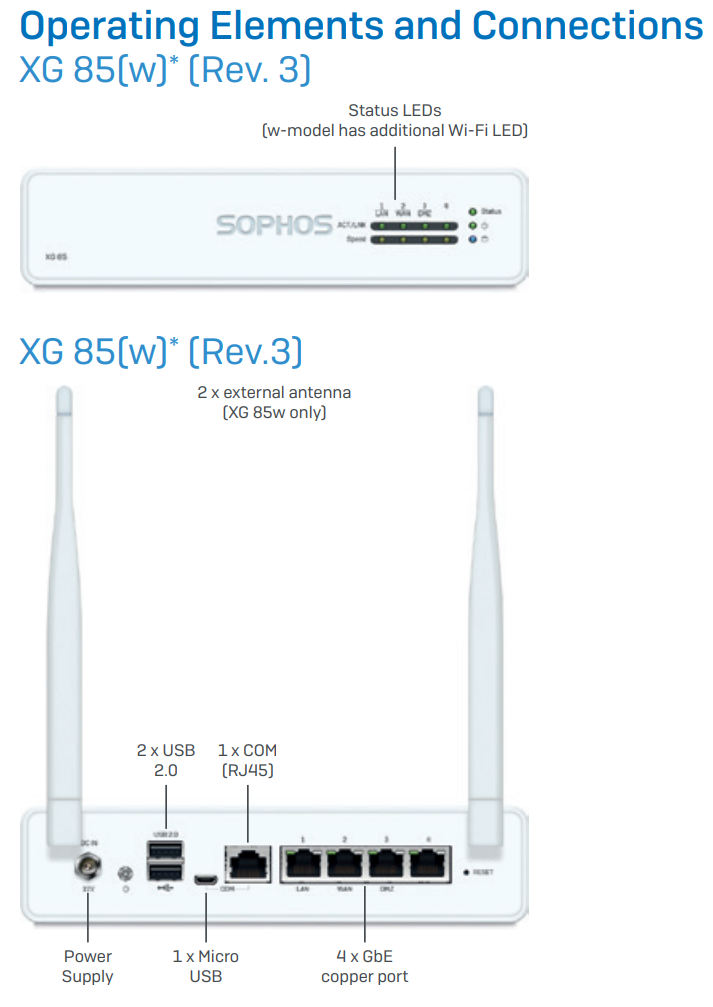
The devices do not have traditional video output. Instead, we will need to rely on the serial console. There are two ways of accessing it, (1) via RJ-45 COM port using a console cable, and (2) via micro-USB port using a standard USB cable (see the illustration above for port locations). Since standard USB cables are much more common, we will stick with this option for this guide. (If you prefer the console cable, you are likely to be familiar with it enough to adjust these directions on the fly.)
Preparations
To install OpenWrt on this device, you will need:
- a computer to control the installation process from,
- a USB stick,
- at least one Ethernet cable, and
- a regular USB cable (one end should be something you can plug into your computer, the other should be micro-USB)
On the computer, you will need a program capable of managing console connections. The most common one on Windows is Putty (it's free, you can get it directly from the developer); on Linux, multiple options exist; we prefer screen.
Initial setup
We will start by setting up and testing the console connection.
First, with the Sophos device turned off and no Ethernet cables attached to it, connect your computer to the Sophos device by the USB cable. The device has a chip made by a company called FTDI, so you might get a quick message on your computer saying something to the extent that an FTDI device has been detected. Note that even though the Sophos device is off, the FTDI chip is accessible, because it receives power over USB from your computer.
Next, use whatever console software you have to initiate a console connection at 38400 bps. Once you do that, turn on the Sophos device and ensure you can see the output it sends to the console.
Note that some micro-USB cables are designed to carry only power. So if console connection doesn't start or you can't see the output from the device, make sure you have a cable capable of carrying both power and data (or simply try a different cable).
Next (optionally), turn the device off, wait a few seconds, turn is on again, and immediately start pressing the Del key on your computer (if that fails, try Esc or Tab). This will get you into the device's BIOS. Once you're in, you can go to Advanced >> Serial Port Console Redirection >> Console Redirection Settings and set Bits per second to 115200 (this is the OpenWrt default). Be sure to save BIOS settings. Once you do, you can simply turn the device off for a bit.
Now, on your computer, download the latest OpenWrt image (we suggest x86_64, ext4, non-UEFI). Use your favorite image writing program (our preference on Windows is Rufus; on Linux, we use dd or zcat) to expand the image onto a USB stick.
The actual installation
With Sophos device turned off and no network cables connected, connect the USB cable as discussed previously and initiate a console connection at 115200 bps. Even if you didn't adjust console speed in BIOS, OpenWrt will force this speed once it starts running. The reason you may want to enable it in BIOS is, you want to see system messages that appear before OpenWrt starts. If you didn't adjust the speed in BIOS, those messages would come out at 38400, garbled. (But, in the grand scheme of things, this is not very important.)
Anyway, with console connection established, connect the USB stick to the Sophos device and turn it on. With USB stick inserted, it should boot from it. (If it doesn't, you can force it from BIOS, but it usually does.)
It should take about 20 seconds for the device to boot. Once messages on the console stop coming in, hit Enter. You should see the OpenWrt greeting; it will look like this:
BusyBox v1.37.0 (2026-06-19 10:52:34 UTC) built-in shell (ash)

  _______                     ________        __
 |       |.-----.-----.-----.|  |  |  |.----.|  |_
 |   -   ||  _  |  -__|     ||  |  |  ||   _||   _|
 |_______||   __|_____|__|__||________||__|  |____|
          |__| W I R E L E S S   F R E E D O M
 -----------------------------------------------------
 OpenWrt 25.12.4, r32933-4ccb782af7 Dave's Guitar
 -----------------------------------------------------
By sheer happenstance, the labeling of LAN and WAN ports on these devices corresponds to the functions OpenWrt assigns to those ports by default. So the port labeled LAN is in fact LAN, and the port labeled WAN is in fact WAN. Very convenient.
Now let's do some thinking. The reason we have the device disconnected from any networking is, we want to avoid IP address space collision. By default, OpenWrt assigns the 192.168.1.1 IP address to itself and spins up DHCP service for the 192.168.1.* range. If your existing network operates in the same range, you need to change those settings before you connect the device to your network. For now, let's assume that you don't have the collision.
Now, assuming we concluded that there is no danger of IP address space collision, you can connect the WAN port on your device to your current router. You should see a message like this on the console:
[XXX] r8169 0000:03:00.0 eth1: Link is Up - 1Gbps/Full - flow control off]Next, try accessing the outside world by running this on the command line:
ping -c 3 google.comThis should bring back three responses to your pings.
Now we're ready to do the installation proper. Because this device has eMMC storage, we suggest using squashfs firmware; it's somewhat more resistant to the vagaries of life, such as sudden power loss (though ext4 is not exactly a wilting flower, either). Anyway, run these commands, one at a time:
cd /tmp
wget -O fw.img.gz https://downloads.openwrt.org/releases/25.12.4/targets/x86/64/openwrt-25.12.4-x86-64-generic-squashfs-combined.img.gz
zcat fw.img.gz > /dev/mmcblk0
poweroff
The first (cd) will change the working directory to temporary storage (which resides in memory and thus is very fast).
The second (wget) will download firmware to be installed and give the downloaded file a short name, easy to work with.
The third (zcat) will unpack and expand the image onto the device's eMMC storage in one go (the alternative is to first unpack with gunzip and then expand with dd, but who has the time, right?). Note that since your storage device is eMMC, its system name is /dev/mmcblk0, rather than /dev/sdX used for SATA devices.
The fourth (poweroff), as the name suggests, will power the device off.
When the device powers off (the ON button should change color from blue to red), disconnect the power, remove the USB stick, and reconnect the power. If the ON button doesn't turn from red to blue by itself, press it. The device will boot into a brand-new installation of OpenWrt. You can still access it on the console or connect to the LAN port. The default IP address for the device is 192.168.1.1, login name is root, there's no password (just press Enter when asked for the password on the command line).
Now you can configure the device to your liking.
Wireless Configuration
By default, OpenWrt for x86 does not include wireless networking software. So if you have a wireless device (XG 85w Rev 3 or XG 86w), you will need to install that software. Here's how you can do this on the command line:
apk -U add hostapd-mbedtls kmod-ath10k ath10k-firmware-qca988xOnce the packages are installed, reboot the device. Once the device reboots, wireless hardware should be detected and ready for configuration.
