CloudGenix ION 2000 (more recently marketed as Palo Alto ION 2000) is an entry-level SD-WAN appliance, and a good-looking one at that. The device runs on an Intel Atom C2558 processor (quad-core, 2.4 GHz,) with 4 GB of RAM. It is passively cooled, with the ribbed top surface working as the processor's heatsink.
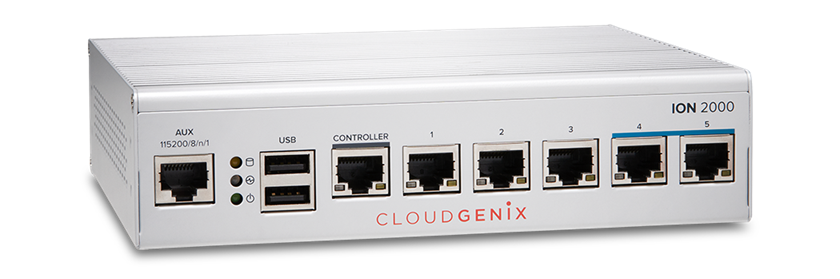
It is also a rebranded Lanner FW-7525, so theoretically, it should be able to run open-source operating systems. In practice, however, there are some difficulties you need to overcome. The device's BIOS is password-protected, and the password somehow hasn't leaked (there's some speculation that it may be based on the device's serial number).
The appliance has two storage devices. The OS core resides on a CF card; extensions and data, on a 2.5" SATA SSD. So by default, the CF card is the boot drive. This opens up one avenue for repurposing: installing an alternative OS onto the CF card. This is definitely workable for OpenWrt (be sure to use squashfs firmware; this is exactly the situation it's intended for). You can also install OPNsense nano onto a CF card (again, this is exactly what the nano version was intended for). To go that route, you need to open up the case (seven screws, one on the bottom and three on each side), remove both storage devices, write firmware onto the CF card, and return the CF card into its holder on the system board.
But what if you want a full-fat OPNsense? This is possible, but a little convoluted. You will need to install OPNsense onto a 2.5" SATA drive on another device. Moreover, you need to make some non-default selections in the installation process; a drive with a by-default installation will not be recognized by BIOS as bootable. Once that is done, you can return the drive into the ION 2000, and the ION 2000 should boot into OPNsense without a problem.
So you start by finding another device that has a console connection (the ION 2000 doesn't have a video output, so you need to use the serial installer, meaning, you will need a console cable for installation), at least one USB port, and SATA connectors (data and power) for a 2.5" drive. We used an old Sophos 105 router; you can use any PC-type device you have handy.
Using your computer, go to the OPNsense downloads page and download OPNsense serial installer image (as of this writing, the current OPNsense version is 25.7). Then, use your favorite image writing program (Rufus, Balena Etcher, bzip2) to expand that image onto a USB stick. This USB stick will be your installation media.
Next, take the drive on which you will be installing OPNsense and connect it to the device on which you will be performing the installation. Insert your USB stick, connect the installation device to your computer using the console cable, start console connection at 115200 bps, and turn on the device. On some devices, you will need to go into BIOS to tell the device to boot from the USB stick; on others, there's a boot menu you can use to choose the boot device; yet others will boot from a USB stick by default. So act according to your circumstances.
The initial start-up process will take one or two minutes. At the end of it, you will be asked to log in. Use the login name installer and password opnsense (all lower-case). Once you do that, the installation process will begin.
The first screen will be Keymap Selection. You can simply hit Enter to continue with the default keymap.
Next, you will see a screen prompting you to Choose one of the following tasks to perform. This is where we begin to deviate from the defaults. Choose Other Modes >> Extended Installation. A menu will pop up; choose Auto (UFS) Guided Disk Setup.
The next screen will be titled Partition. You will be asked whether you want to use the entire disk or a partition to install OPNsense. Select Entire Disk. You will be asked to confirm your choice; answer Yes.
This will get you the Partition Scheme screen. Select MBR DOS Partitions.
At this point, you will see the Partition Editor screen proposing the partitioning of your target drive. The defaults here are sensible, to you can just hit Enter to accept them. A Confirmation dialog will pop up. Select Commit to agree to have the drive partitioned as suggested by the installer.
This will launch the actual installation process. There will be progress indicators for you to see how the process is moving along. At the end of the installation process, there will be the Final Configuration dialog. Choose Confirm and exit. Then, you will see the Installation Complete dialog. Choose Power down system. Your device will power down.
Once your device powers down, disconnect it from power, remove the drive on which you just installed OPNsense, place it into the ION 2000 (be sure to remove the CF card), reassemble the device, and turn it on. OPNsense should boot with no problem. At this point, you can log in using the console or the Web management interface. Initially, the port labeled CONTROLLER will be WAN, the port labeled 1 will be LAN. The Web management interface will be accessible on the LAN port at https://192.168.1.1. Use the default login name (root) and password (opnsense) for the first login. When you log in for the first time, OPNsense will ask you a few questions to customize your installation. You can accept all defaults, but be sure to change your password.
